
The Science Behind Touchscreens: How Your Finger Controls the Screen
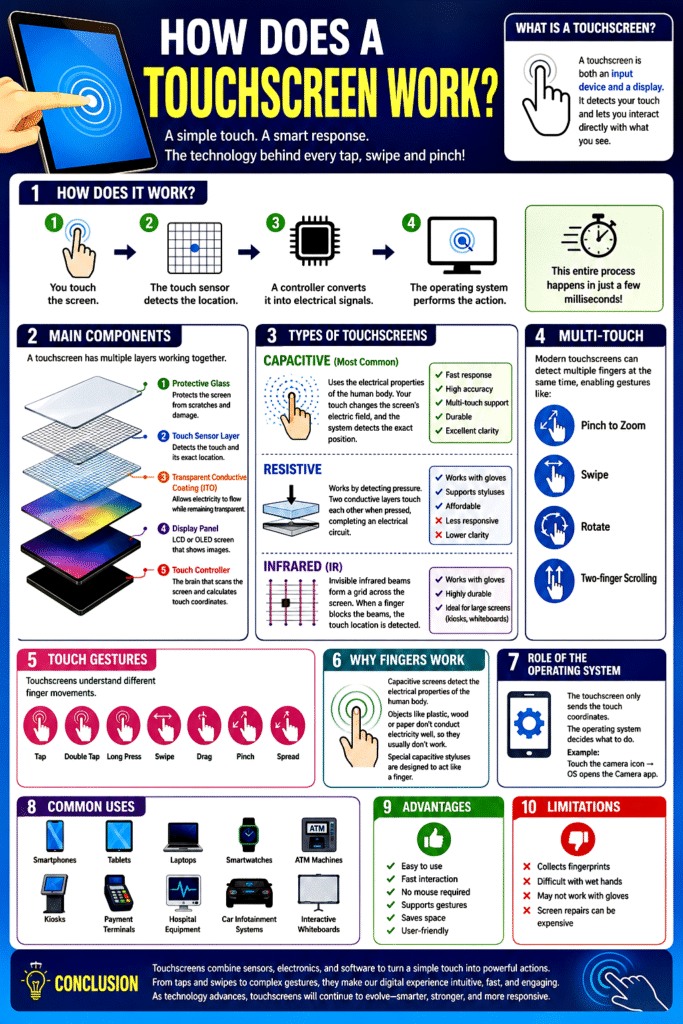
Touchscreens have become an essential part of modern life. From smartphones and tablets to ATMs, self-service kiosks, laptops, car infotainment systems, and medical equipment, touchscreens allow users to interact directly with digital devices by simply touching the display. Instead of using a keyboard or mouse, a touchscreen senses your finger or a special stylus and instantly converts that touch into commands.
Below is a detailed pointwise explanation of how a touchscreen works, with the key points highlighted in each section.
1. What Is a Touchscreen?
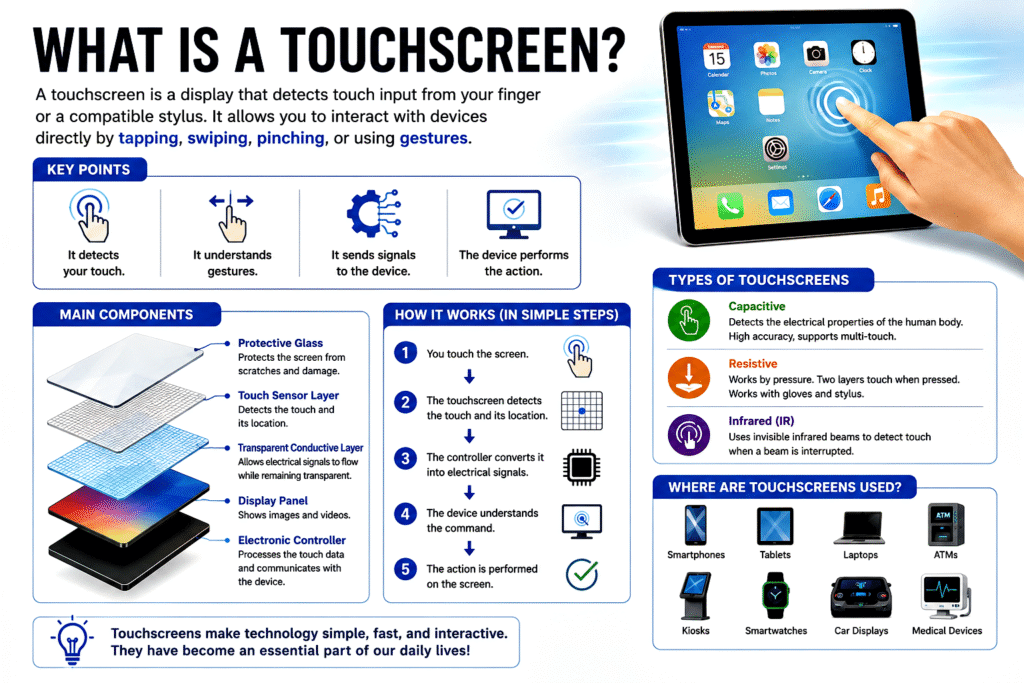
Key Point: A touchscreen is both an input device and a display.
A touchscreen is a special type of display that not only shows images but also detects where the user touches the screen. Unlike traditional monitors that only display information, touchscreens combine display technology with touch-sensitive sensors.
When you tap an icon, swipe a page, zoom into a photo, or type on a virtual keyboard, the touchscreen detects the exact position of your finger and sends that information to the device’s processor.
This direct interaction makes electronic devices much easier and faster to use.
2. The Basic Principle Behind a Touchscreen
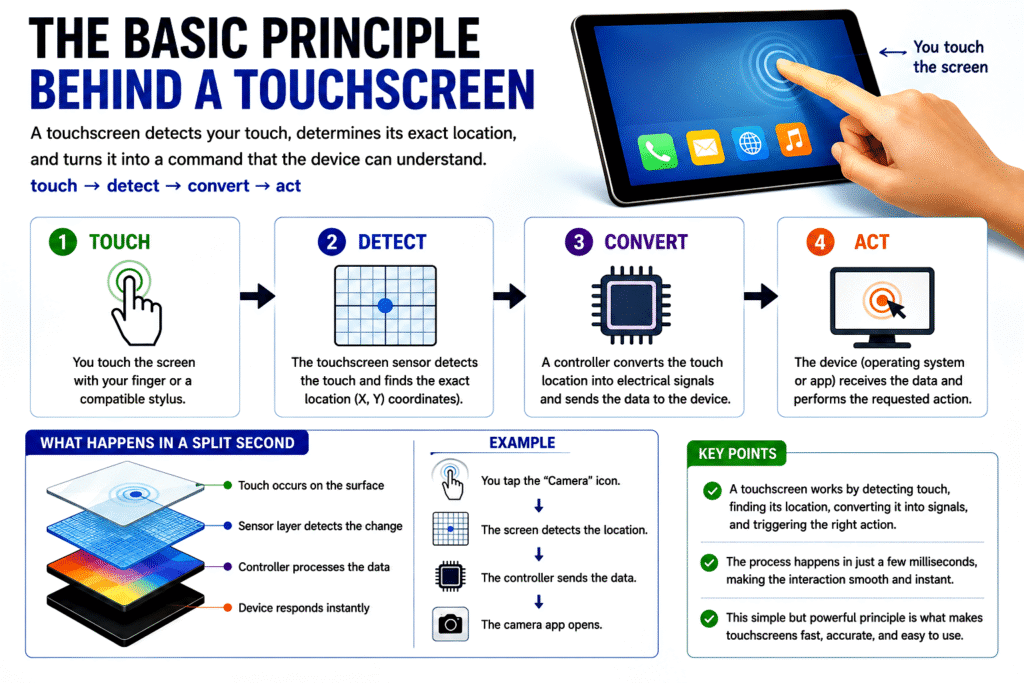
Key Point: A touchscreen detects the location of your touch and converts it into digital signals.
The working process can be summarized in four simple steps:
- Your finger touches the screen.
- The touchscreen detects the location of the touch.
- A controller converts the touch into electrical signals.
- The operating system performs the requested action.
For example:
- Touch the Camera icon.
- The touchscreen identifies the coordinates.
- The processor receives those coordinates.
- The Camera application opens.
This entire process usually takes only a few milliseconds.
3. Main Layers of a Touchscreen
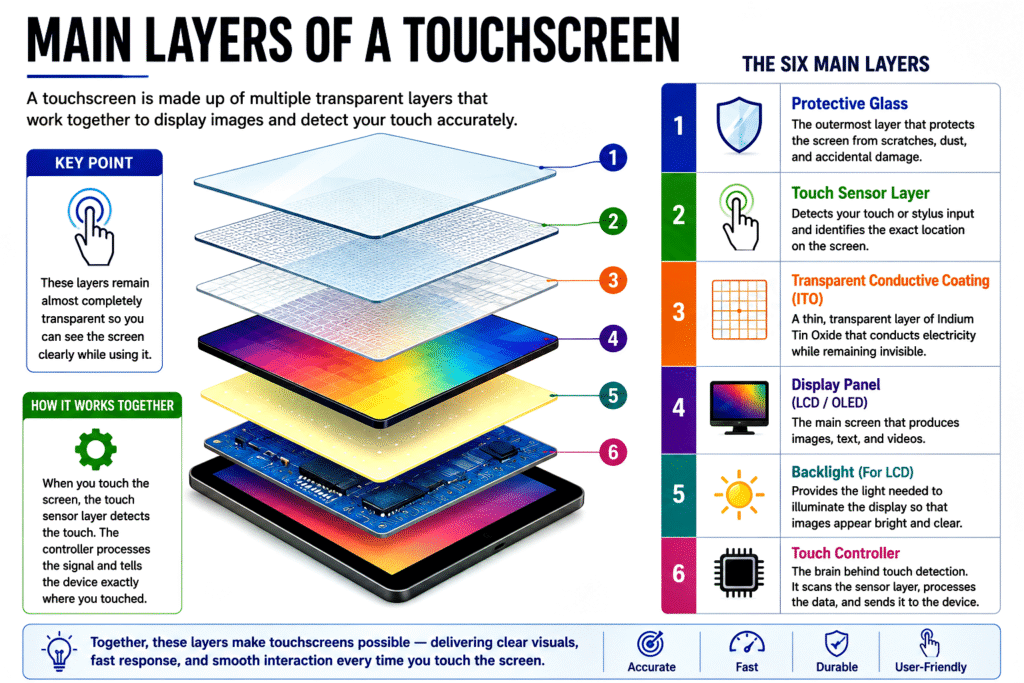
Key Point: Multiple transparent layers work together to detect touch.
A touchscreen is not just a piece of glass. It consists of several carefully designed layers.
Typical layers include:
- Protective glass
- Touch-sensitive layer
- Transparent conductive coating
- Display panel (LCD or OLED)
- Backlight (for LCD displays)
- Electronic controller
Each layer performs a specific function while remaining almost completely transparent so the displayed image stays bright and clear.
4. Protective Glass Layer
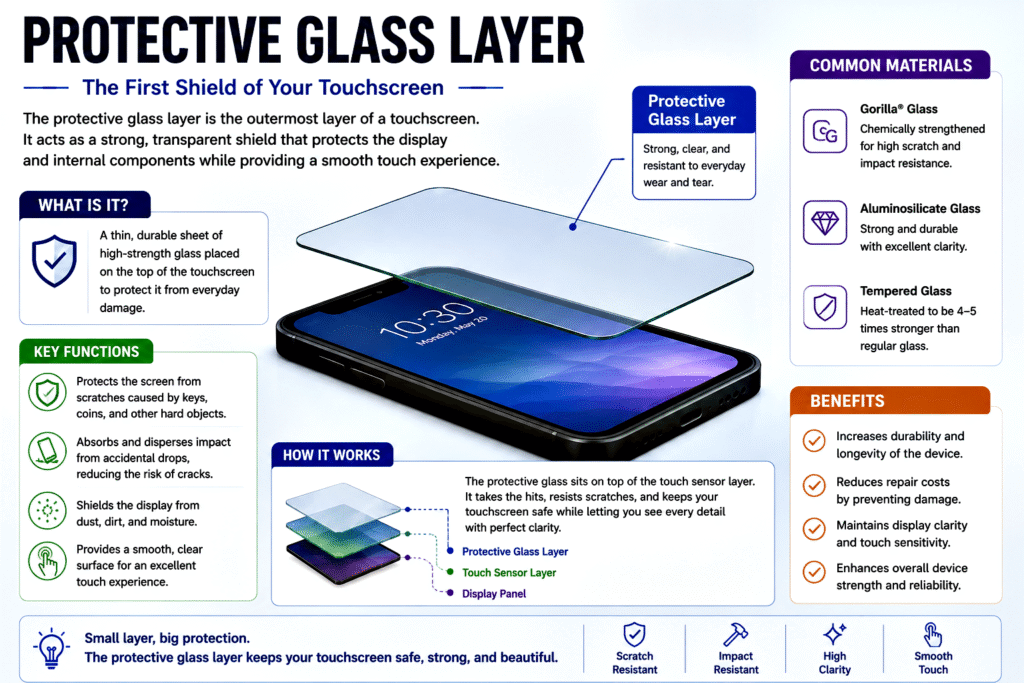
Key Point: The outer glass protects the touchscreen from damage.
The top layer is made of strong, scratch-resistant glass.
Its functions include:
- Protecting internal components
- Preventing scratches
- Reducing damage from accidental drops
- Providing a smooth surface for finger movement
Many premium smartphones use chemically strengthened glass for extra durability.
5. Touch Sensor Layer
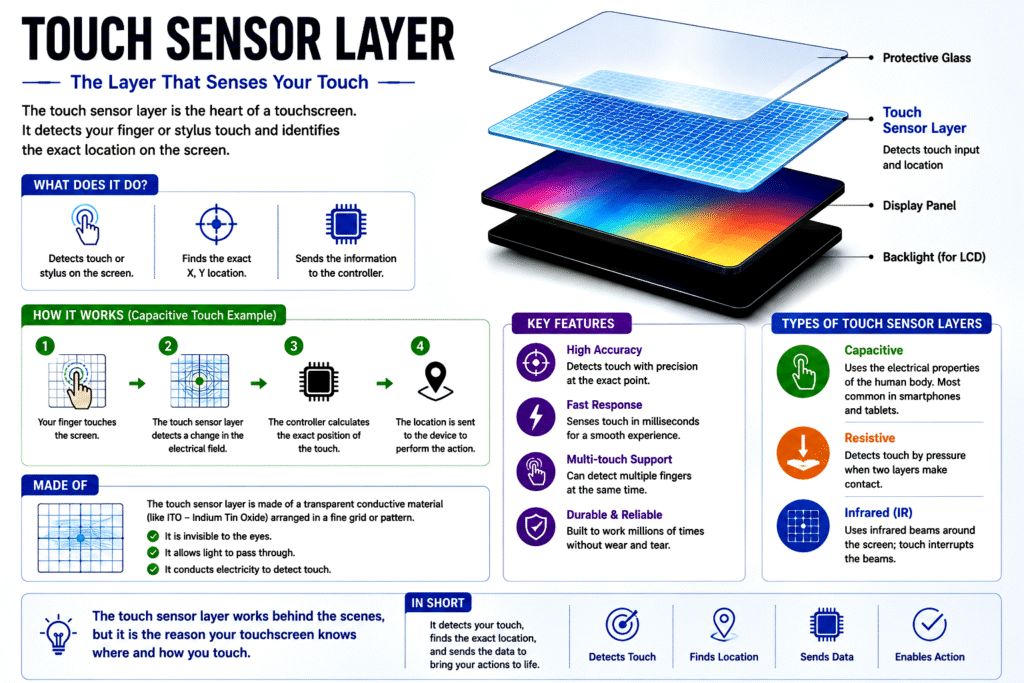
Key Point: This layer detects the user’s touch.
Beneath the protective glass lies the touch sensor.
This sensor constantly monitors the screen for touch events.
Whenever a finger approaches or touches the screen, the sensor detects a change in electrical properties and immediately reports the location.
Without this layer, the display would simply function as an ordinary monitor.
6. Transparent Conductive Material
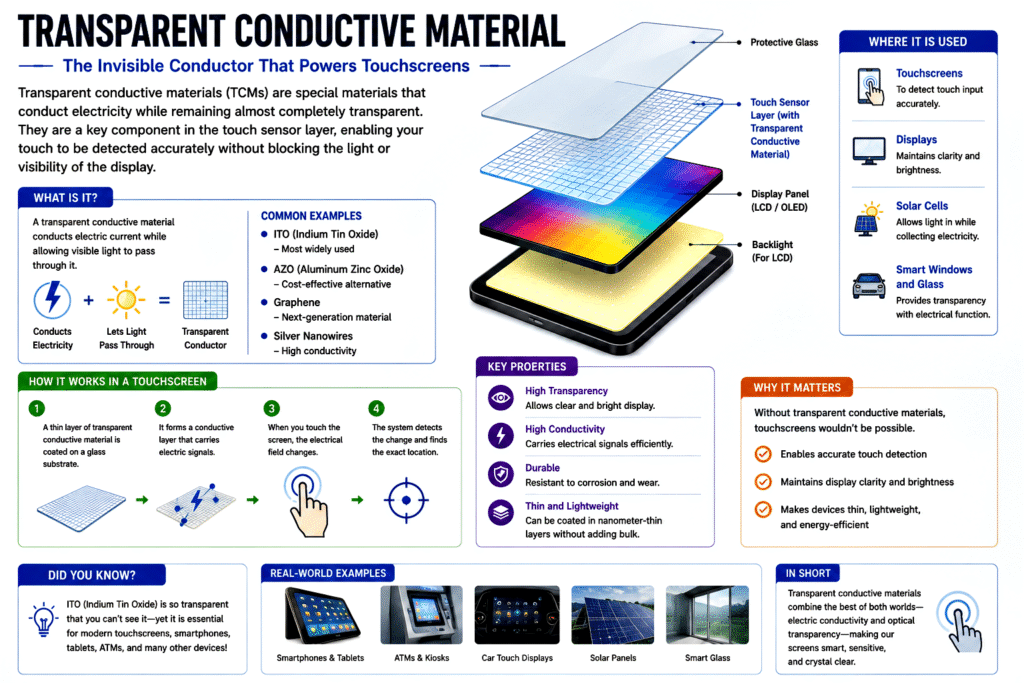
Key Point: Invisible conductive coatings make touch detection possible.
Most touchscreens use a transparent conductive material called Indium Tin Oxide (ITO).
ITO allows electricity to pass through while remaining almost completely transparent.
Because of this unique property:
- Users can clearly see the display.
- Electrical signals can travel across the screen.
- Touch positions can be accurately detected.
7. Touchscreen Controller
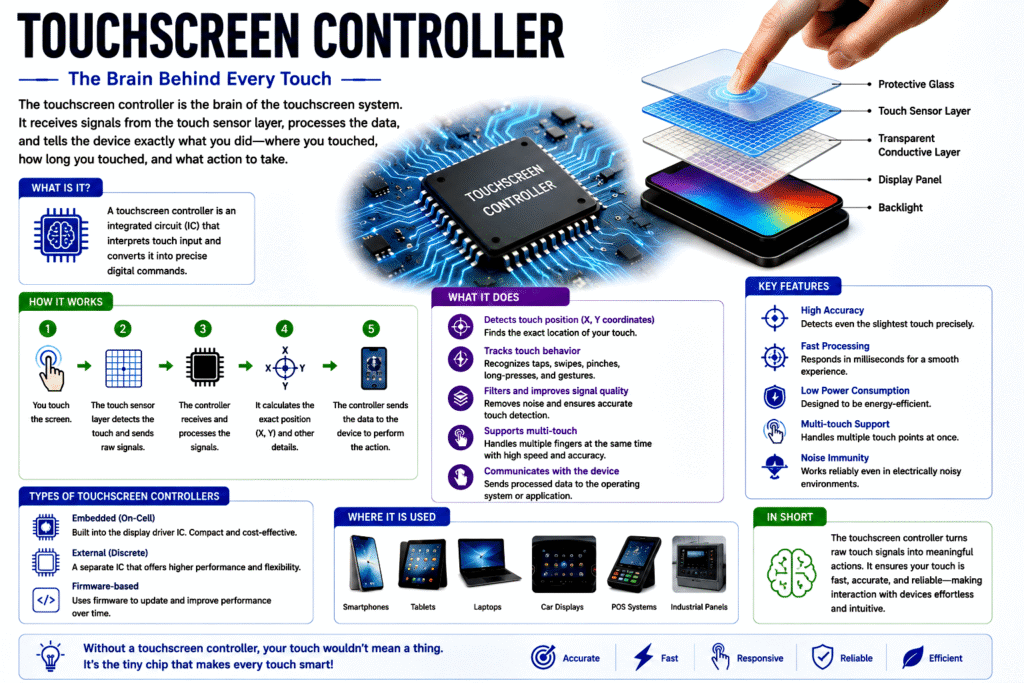
Key Point: The controller acts as the brain of the touchscreen.
The touchscreen controller continuously scans the sensor layer.
Its responsibilities include:
- Detecting touch points
- Measuring electrical changes
- Calculating touch coordinates
- Sending data to the processor
Modern controllers can detect multiple touches simultaneously.
8. Coordinate Detection
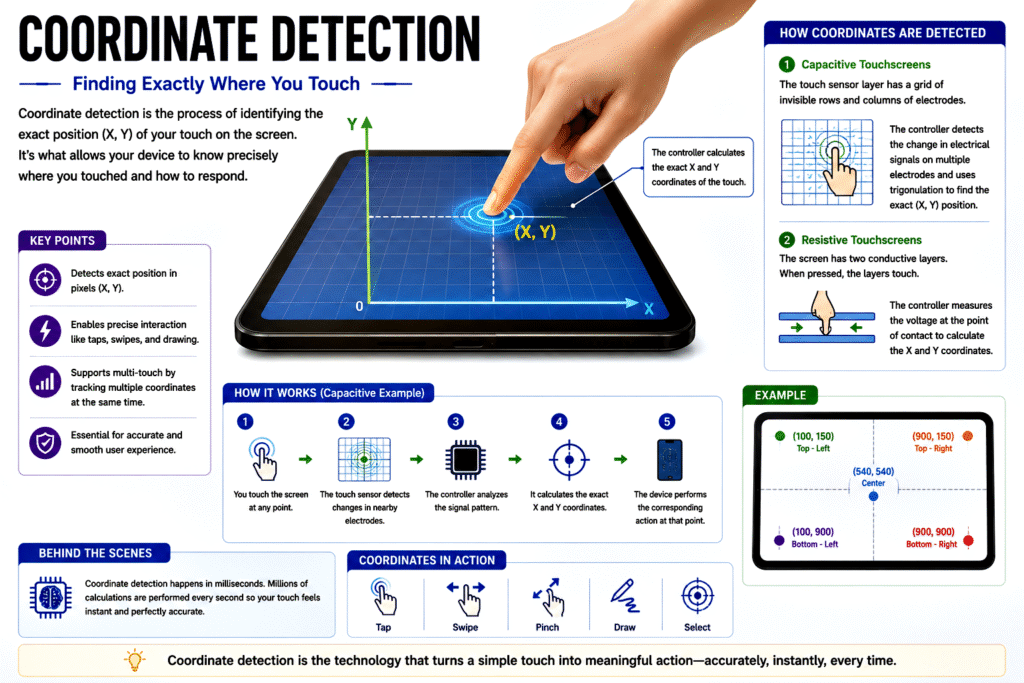
Key Point: Every touch has an exact X-Y location.
When you touch the screen, the controller determines the precise coordinates.
For example:
- X = Horizontal position
- Y = Vertical position
If you touch the center of the screen, the controller calculates those coordinates with remarkable precision.
The operating system then determines which button or icon exists at those coordinates.
9. Capacitive Touchscreen Technology
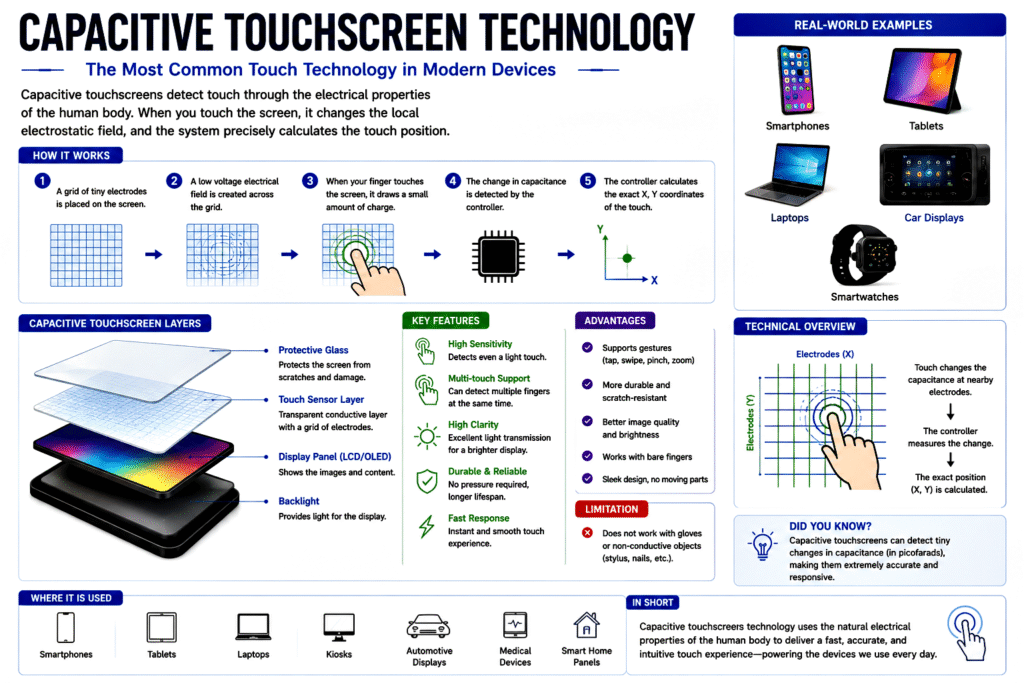
Key Point: Capacitive touchscreens use the electrical properties of the human body.
Most smartphones today use capacitive touchscreens.
The screen contains a very small electric field.
Since the human body conducts electricity, touching the screen slightly changes this field.
The touchscreen detects this tiny change and calculates the touch location.
Advantages include:
- Extremely fast response
- High accuracy
- Excellent durability
- Multi-touch capability
- Bright display quality
10. Multi-Touch Technology
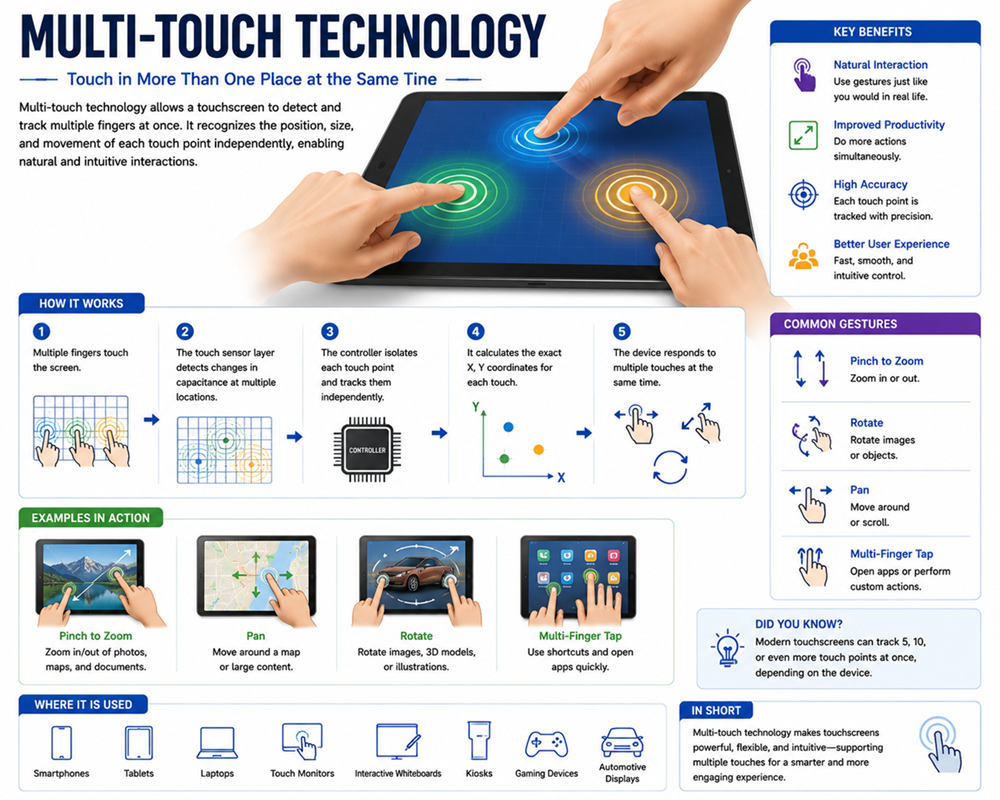
Key Point: Modern touchscreens can detect multiple fingers simultaneously.
Earlier touchscreens recognised only one touch at a time.
Modern capacitive screens support:
- Two fingers
- Five fingers
- Ten fingers
- Even more in specialized devices
This enables gestures such as:
- Pinch to zoom
- Rotate
- Two-finger scrolling
- Multi-finger gaming controls
11. Gesture Recognition
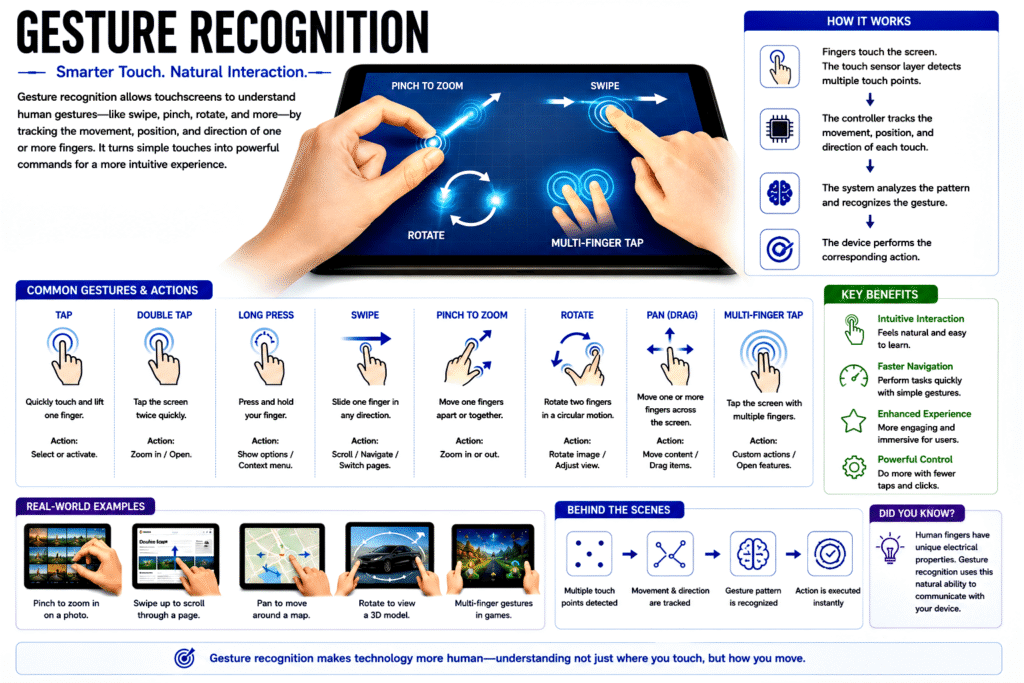
Key Point: Touchscreens understand different finger movements, not just taps.
Today’s touchscreens recognize gestures including:
- Single tap
- Double tap
- Long press
- Swipe
- Drag
- Pinch
- Spread
- Rotate
The operating system assigns different functions to each gesture.
12. Role of the Operating System
Key Point: The operating system translates touch into actions.
The touchscreen only reports touch coordinates.
The operating system interprets those coordinates and decides what should happen.
For example:
- Touching a key types a letter.
- Swiping changes pages.
- Pinching zooms an image.
- Pressing an app icon opens the application.
13. Touchscreen Response Speed
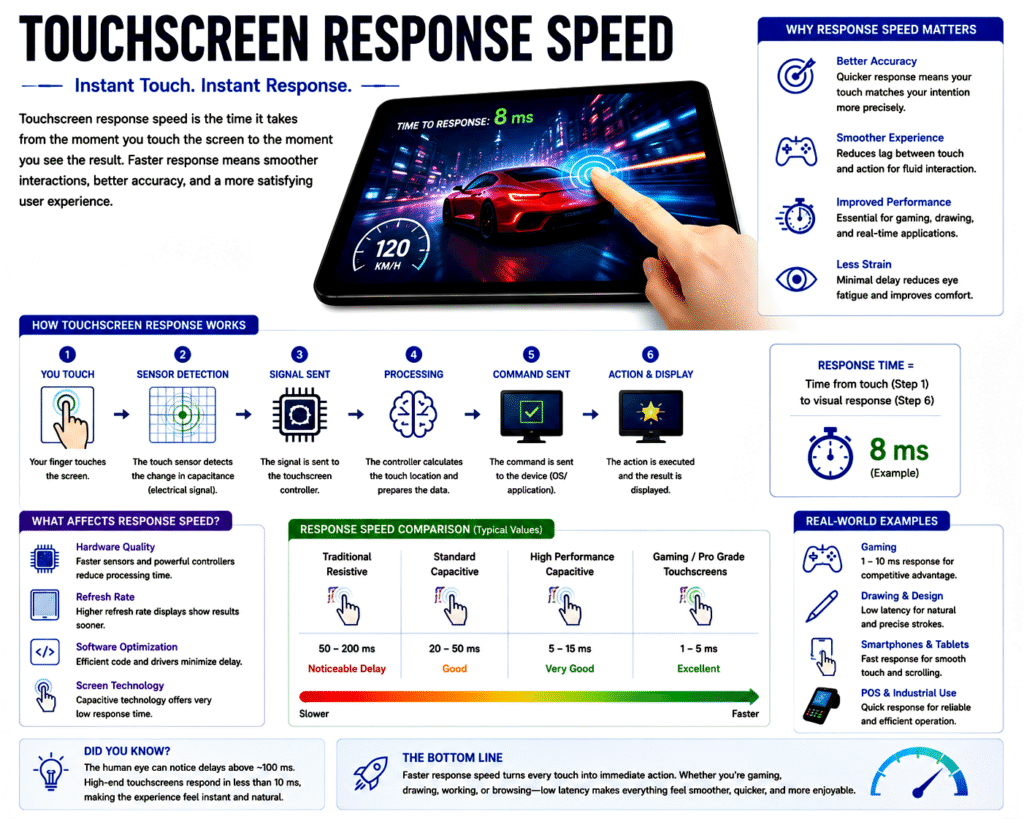
Key Point: Touchscreens respond in just a few milliseconds.
Modern touchscreens scan for touches hundreds of times per second.
High-end smartphones often have touch sampling rates of:
- 120 Hz
- 240 Hz
- 360 Hz
- 480 Hz
- 960 Hz (gaming devices)
Higher sampling rates provide smoother and more responsive interactions.
14. Why Fingers Work Better Than Most Objects
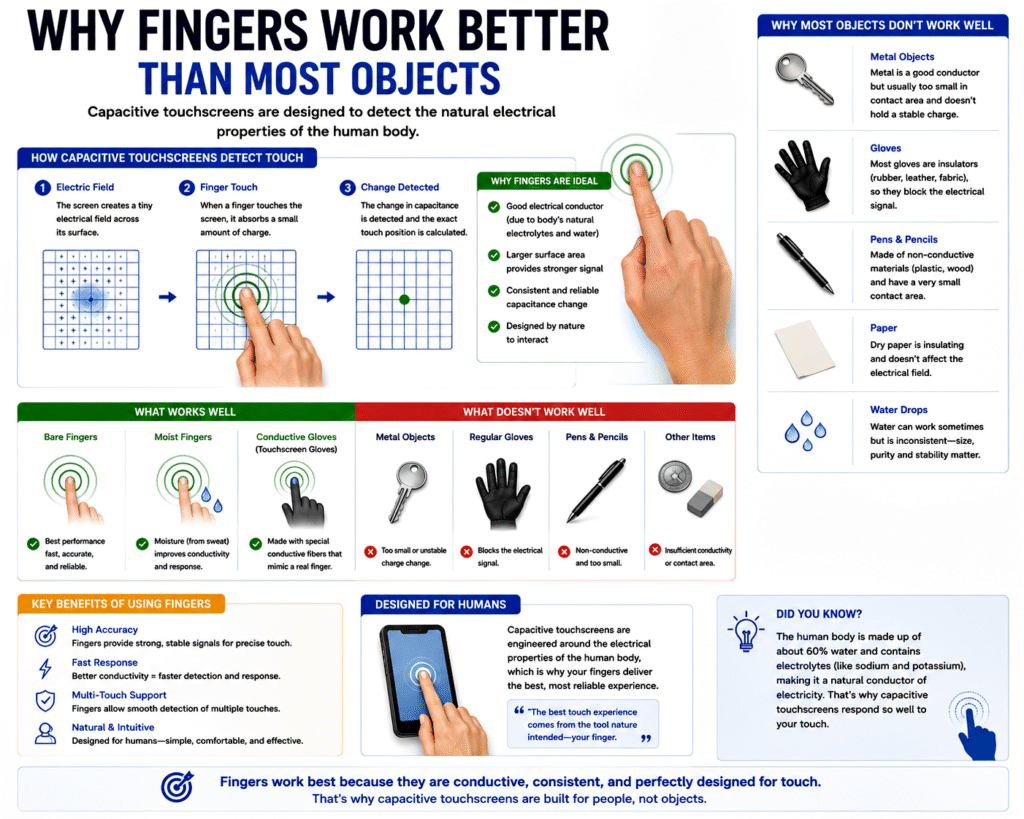
Key Point: Human skin conducts electricity, making it ideal for capacitive screens.
A capacitive touchscreen relies on the conductive properties of your body.
Objects like:
- Plastic
- Wood
- Paper
do not conduct electricity well and therefore usually do not register as touches.
Special capacitive styluses are designed to mimic the electrical characteristics of a finger.
15. Common Applications of Touchscreens
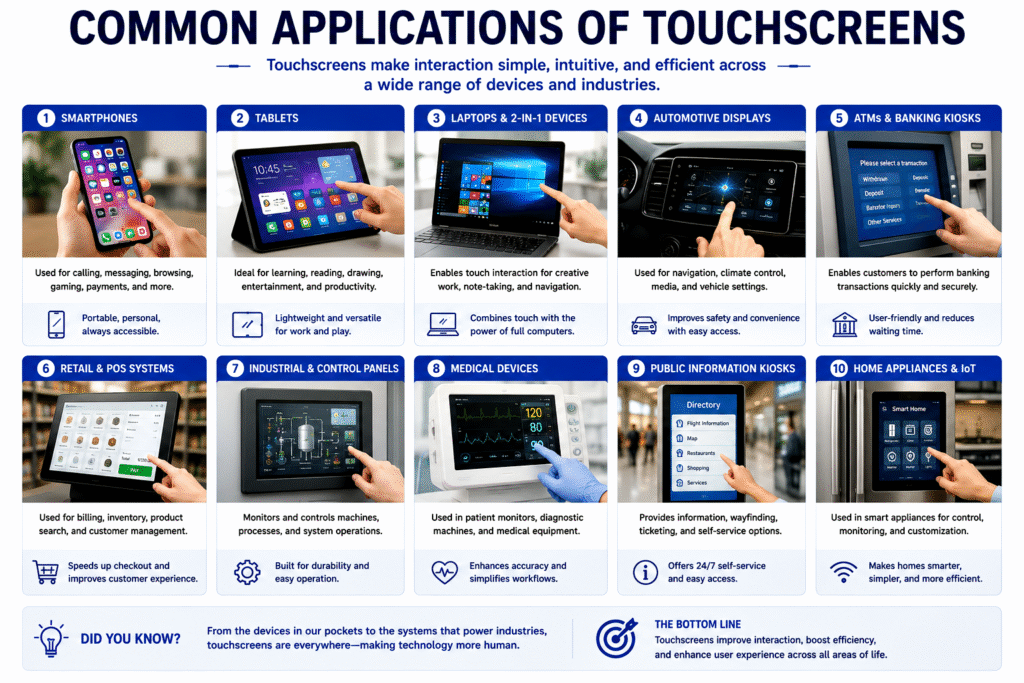
Key Point: Touchscreens are used in many industries beyond smartphones.
Touchscreen technology is found in:
- Smartphones
- Tablets
- Laptops
- Smartwatches
- ATM machines
- Ticket vending machines
- Restaurant ordering kiosks
- Hospital equipment
- Car infotainment systems
- Retail payment terminals
- Industrial control panels
- Airport self-check-in kiosks
Their intuitive interface has made them a standard method of interacting with electronic devices.
16. Advantages of Touchscreens
Key Point: Touchscreens provide a fast, intuitive, and space-saving user experience.
Major benefits include:
- Easy to learn
- Faster navigation
- No separate mouse required
- Supports rich gestures
- Saves space
- Improves accessibility
- Enables direct interaction with on-screen content
- Ideal for portable devices
These advantages have made touchscreens the dominant interface for modern consumer electronics.
17. Limitations of Touchscreens
Key Point: Despite their convenience, touchscreens have some drawbacks.
Some common limitations are:
- Fingerprints and smudges accumulate easily.
- Bright sunlight can reduce screen visibility.
- Wet surfaces may interfere with touch detection.
- Gloves often do not work on standard capacitive screens.
- Repairs can be expensive if the display is damaged.
- Prolonged use may cause arm or finger fatigue on large vertical screens.
Manufacturers continue to improve touchscreen technology to address these issues.
Conclusion
Key Point: A touchscreen converts a simple touch into precise digital instructions through a combination of sensors, electronics, and software.
Touchscreens represent a remarkable blend of materials science, electronics, and computing. Behind every tap, swipe, and pinch is a sophisticated process: transparent conductive layers or optical sensors detect the touch, a controller calculates its exact coordinates, and the operating system translates those coordinates into meaningful actions. As technology continues to evolve, future touchscreens are expected to become even more responsive, durable, energy-efficient, and capable of supporting advanced interactions such as haptic feedback, in-display fingerprint sensing, and touchless gesture recognition.