
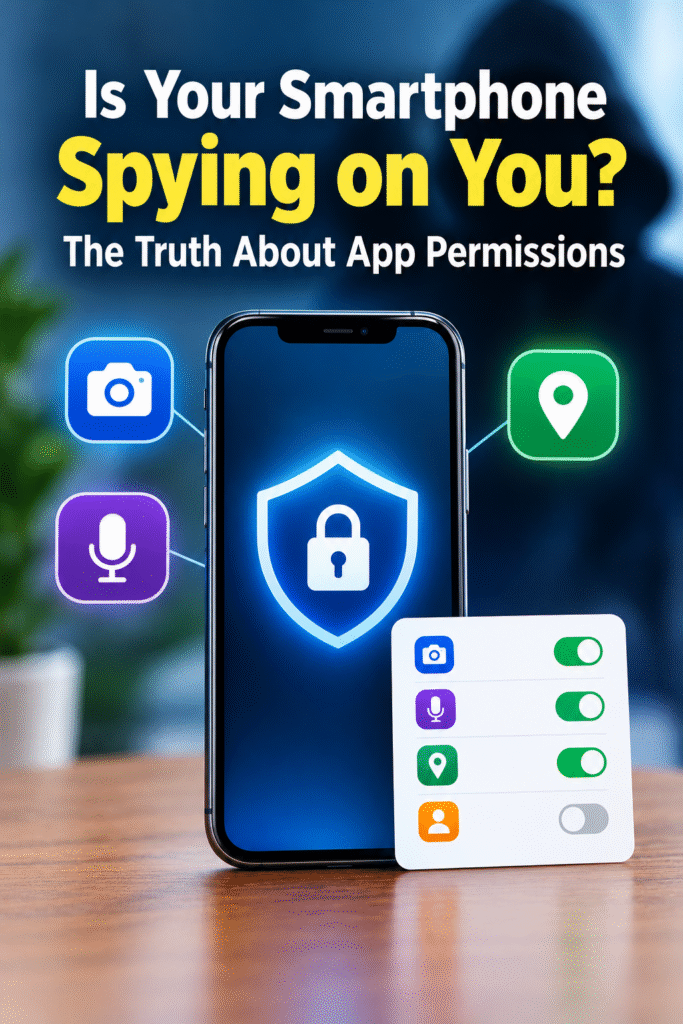
Is Your Smartphone Spying on You? The Truth About App Permissions
Introduction
Have you ever discussed a product with someone and later noticed advertisements for similar products on your smartphone? Have you wondered why certain apps ask for access to your camera, microphone, contacts, or location?
These experiences often make people question whether their smartphones are secretly watching or listening to them. The reality is that mobile apps can collect personal information, but not every permission request means an app is spying on you.
Understanding how app permissions work can help you protect your privacy while continuing to enjoy the benefits of modern technology.
1. Why Do Apps Request Access to Your Camera, Microphone, and Location?
When you install an app, it may ask permission to use certain features of your smartphone. These permissions help apps perform specific tasks, but some requests may be unnecessary for their main purpose.
- Camera access: Video-calling apps need your camera to show your face, while social media apps use it to capture photos and videos. However, a basic calculator app normally has no reason to access your camera.
- Microphone access: Messaging apps use the microphone to record voice messages, while video-conferencing apps need it for conversations. An unrelated app requesting microphone access deserves closer inspection.
- Location access: Navigation apps use your location to provide directions, while weather apps may use it to show local forecasts. Other apps may use location information for analytics or personalised advertising.
Key point: Grant permissions according to an app’s actual needs. If a permission seems unrelated to its purpose, consider denying it.
2. Can Apps Access Your Information When You Are Not Using Them?
Some smartphone apps can perform activities in the background even when you are not actively using them. This allows certain services to work without requiring you to open the app repeatedly.
For example, an email app may synchronise new messages, a messaging app may receive notifications, and a fitness app may record your physical activity.
Depending on the app and your settings, background activities may include:
- Synchronising information with online services.
- Receiving messages and notifications.
- Updating content in the background.
- Accessing location when permitted.
- Sending usage statistics or diagnostic information.
However, background activity does not automatically mean that an app is secretly recording conversations or watching you.
Modern Android and iPhone operating systems provide restrictions and privacy indicators for sensitive features such as the camera and microphone.
Key point: Background activity can be useful, but you should review which apps are allowed to access sensitive information and whether they genuinely need it.
3. Why Do Advertisements Sometimes Seem to Know What You Are Thinking?
Many smartphone users notice advertisements for products they have recently searched for, discussed, or purchased. This can create the impression that their phones are constantly listening to them.
However, there are several possible explanations.
- Browsing history: Websites and advertising services may use your searches and browsing activity to select relevant advertisements.
- Online behaviour: Your clicks, purchases, and viewing habits can help advertising systems predict your interests.
- Location information: Some services use location data to provide locally relevant advertisements.
- Recommendation algorithms: Artificial intelligence and data analysis can predict what you might want based on your previous behaviour.
- Coincidence: Sometimes an advertisement appears shortly after a conversation simply by chance.
Although apps can access microphones when permitted and operating-system restrictions allow it, an advertisement appearing after a conversation is not proof that your phone secretly recorded you.
Key point: Do not assume every personalised advertisement results from microphone surveillance. Review your permissions, tracking settings, and online activity to understand how your information may be used.
4. How to Check App Permissions on an Android Smartphone
Android provides settings that allow you to control which apps can access your camera, microphone, location, contacts, and other information.
Follow these steps:
- Open Settings on your smartphone.
- Select Apps.
- Choose the app you want to check.
- Tap Permissions.
- Review the permissions granted to that app.
- Select a permission and change it to Don’t allow, or choose a more restrictive option where available.
You can also review permissions by category. Depending on your Android version and phone manufacturer, open Settings → Privacy or Security & privacy → Permission manager.
From there, select Camera, Microphone, Location, or another category to see which apps have access.
Some Android phones also provide a Privacy Dashboard showing recent permission usage. On supported devices, a green indicator appears when the camera or microphone is in use.
Key point: Check your Android permissions regularly and remove access that an app does not need. Menu names may differ between Samsung, Xiaomi, OnePlus, Motorola, and other devices.
5. How to Check App Permissions on an iPhone
Apple provides similar controls that allow iPhone users to manage app access to personal information and device features.
Follow these steps:
- Open Settings on your iPhone.
- Tap Privacy & Security.
- Select Camera, Microphone, Location Services, Contacts, Photos, or another category.
- Review which apps have requested or received access.
- Turn off access for apps that do not need it.
For location access, you can often choose options such as Never or While Using the App. You may also be able to disable Precise Location for apps that do not require your exact position.
iPhones display an orange indicator when the microphone is being used and a green indicator when the camera is being used, including when the camera and microphone are active together.
You can also explore Apple’s App Privacy Report, which provides information about sensor access and app network activity after the feature is enabled.
Key point: iPhone users should review Privacy & Security settings and investigate unexpected camera or microphone activity instead of automatically trusting every app.
6. Seven Simple Ways to Improve Your Smartphone Privacy
Protecting your privacy does not require advanced technical knowledge. A few simple habits can reduce unnecessary access to your personal information.
- Remove unnecessary permissions: Deny access to the camera, microphone, contacts, or location when an app does not need these features.
- Limit location sharing: Prefer approximate location or access only while using an app whenever practical.
- Delete unused apps: Remove applications you no longer use, especially those from unfamiliar developers.
- Download trusted apps: Use official app stores and check the developer, reviews, requested permissions, and privacy information before installation.
- Keep your phone updated: Install operating-system and security updates to benefit from important fixes and improvements.
- Review tracking settings: Check available advertising and tracking controls. Remember that restricting tracking does not eliminate every form of data collection.
- Use strong security: Protect your phone with a strong PIN or password, enable biometric security where appropriate, and use two-factor authentication for important accounts.
You should also be careful when granting permissions to unfamiliar apps, clicking suspicious links, or installing applications from untrusted websites.
Key point: Make smartphone privacy a regular habit. Reviewing permissions once a month can help you identify unnecessary access and maintain better control over your personal information.
Conclusion
Smartphones have become essential tools for communication, entertainment, shopping, banking, and work. However, many apps request access to information that deserves careful protection.
The important thing is to understand why an app needs a particular permission and whether that access is necessary. A navigation app may need your location, while a simple calculator usually does not. Similarly, a video-calling app needs camera and microphone access when you make calls.
Your smartphone does not have to become a privacy risk if you use it wisely. Review your app permissions, keep your device updated, and avoid granting unnecessary access to personal information.
Remember, protecting your digital privacy begins with understanding what you are sharing and making informed decisions about who can access it.